

Cloud VMS bandwidth requirements: what your cameras will send
 By Muhammad Talha · Product Manager and CTONine years building computer vision and automated surveillance systems · Updated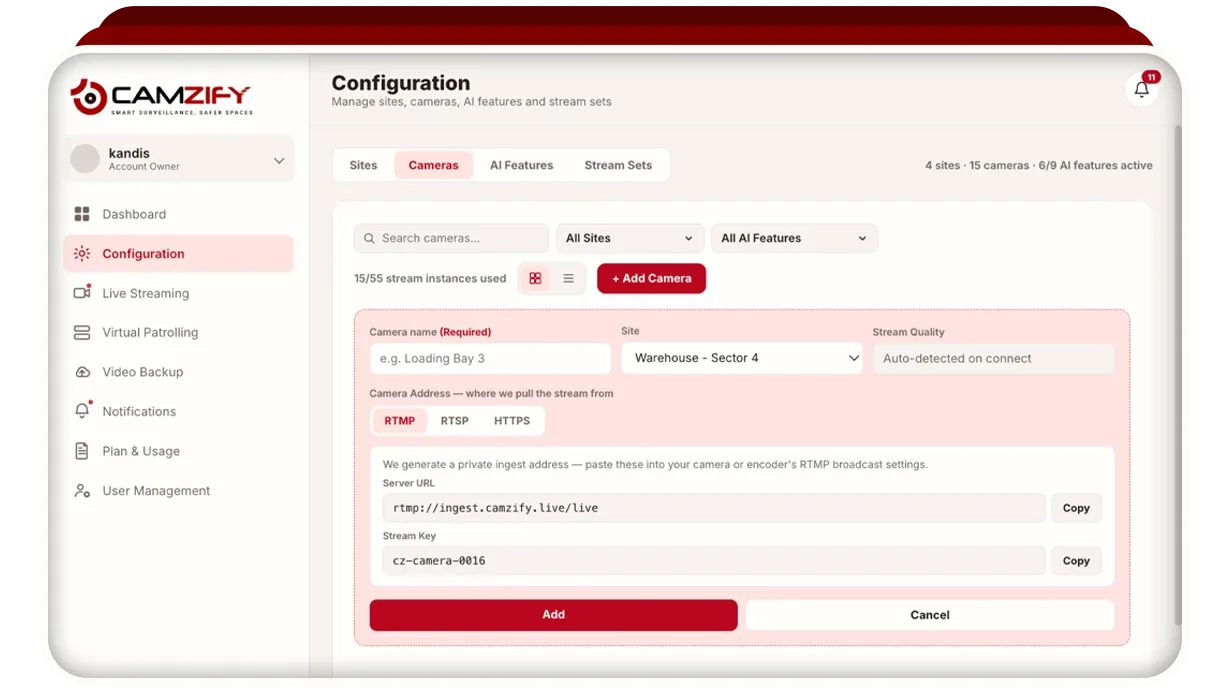
Cloud VMS bandwidth requirements come down to one comparison: the upstream capacity of your site's internet connection against the combined bitrate of every camera stream you send to the cloud. In cloud video surveillance, the cameras stream to a cloud VMS instead of a recorder on site, so video that used to stay on the local network now leaves the building over your internet connection for as long as those cameras record. This guide shows how to work out what your cameras will send, how to measure what the connection can carry, and what to change when the two do not fit.
It gives no figures, and that is deliberate. The numbers belong to your cameras and your connection, and both can be read directly.
Why does upload speed matter more than download?
Cameras send video; they do not receive it. A cloud VMS therefore uses the upload half of your internet connection almost exclusively, and that is the half most business connections ration. A symmetrical fiber line gives the same speed in both directions, but cable, DSL and most wireless services are asymmetrical: the download figure on the contract is the headline and the upload figure is a fraction of it. When a site's cameras stall or drop frames in the cloud, the advertised download speed is almost never the reason.
That upload capacity is also shared. Email, cloud backups, video calls, point-of-sale terminals and every phone on the guest Wi-Fi draw from the same upstream pool as the cameras. The question is not whether the connection can carry the cameras on a quiet night but whether it can carry them at the busiest hour of the working day with everything else running.
How do I work out what my cameras will send?
Add up the bitrate of every stream you intend to send to the cloud. That sum is the upstream bandwidth the cameras need, and every figure in it is a setting you can read from the camera's own interface. Open the camera's admin page, find the video or encoding settings, and note the bitrate for the stream you plan to use. If the camera is set to variable bitrate, the figure shown is a ceiling and the real rate rises and falls with scene activity, so plan on the ceiling.
Four settings decide that bitrate, and all four live on the camera. Resolution sets how many pixels each frame holds. Frame rate sets how many frames are sent each second. The codec decides how efficiently those frames are compressed, and the bitrate setting itself caps or fixes the result, which is why two cameras of the same model can send very different amounts.
Most IP cameras expose two streams. The main stream is the full-resolution feed, and the sub stream is a smaller version of the same view at lower resolution and often a lower frame rate, on its own RTSP address. Camzify connects to whichever RTSP URL you give it, so which of the two reaches the cloud is your choice, made per camera. The ONVIF and RTSP guide explains where those addresses come from, and the RTSP setup guide shows how a camera is added.
Once a camera is connected, Camzify detects the stream quality automatically, and the storage figures shown while you configure recording are estimates derived from the stream bitrate, the recording hours and the retention days you set. Actual consumption varies with scene activity. Those estimates are a useful cross-check: if the storage figure is far larger than you expected, the bitrate feeding it is larger than you expected too.
Does continuous recording use more bandwidth than scheduled recording?
Yes, because bandwidth is consumed whenever a stream is being sent, and continuous recording sends the stream all the time. Recording on Camzify runs continuously or on a schedule defined per camera, and a schedule can be applied to a whole site or to every camera at once, so the hours a camera streams to the cloud for recording are yours to set. A camera that records only outside business hours draws nothing from the upstream pool for recording during the working day, which is when the rest of the site needs that capacity most.
Recording is not the only thing that pulls a stream. A camera with an AI detection enabled is watched for it continuously, whatever its recording schedule says, and a camera on a patrol route is read at each stop, as is any camera someone opens in the live wall. Treat the recording schedule as the floor of a camera's bandwidth use and its live, detection and patrol use as what sits above it. The video backup and retention page sets out the recording modes and the per-camera retention that goes with them.
How does the Camzify Connector affect bandwidth?
The Camzify Connector is how cameras on a private network reach the cloud, and it changes the route, not the amount. It is a lightweight application installed on a Windows, macOS or Linux machine that can see the cameras on the local network and reach the internet at the same time. You enter the cameras' RTSP URLs into it; it makes an outbound connection to Camzify over HTTPS, the same direction as ordinary web traffic, and relays the streams along with pan, tilt and zoom control for cameras that support it. No port is forwarded, no static IP is needed, and the cameras are never exposed to the internet.
For bandwidth planning, two things follow. Every stream the Connector relays still leaves the site over the same upstream connection at the bitrate the camera produces it, so the sum from the previous section is unchanged. And because the Connector is where the RTSP URLs are entered, it is also where you choose main stream or sub stream for each local camera.
A camera that already publishes an RTSP stream to the internet, or sits behind a recorder that does, connects directly without the Connector. The camera connectivity page covers all three connection types, RTSP, RTMP and HTTPS, and which route suits which camera.
What should I do when bandwidth is short?
Reduce what the cameras send, reduce when they send it, or leave some of them out of the cloud. Those are the only three levers, and they can be combined per camera, so a site rarely has to choose between every camera in the cloud and none. In order of cost to you:
- Switch to the sub stream. Give Camzify the sub stream's RTSP address instead of the main stream's. It is usually the largest single saving available and needs no change on the camera itself.
- Lower the frame rate or the bitrate cap on the camera. Both are settings in the camera's interface and both reduce the stream directly. Check the live view and any detections you rely on afterward before treating the new setting as final.
- Record on a schedule. Set the cameras that only matter after hours to record after hours, and keep continuous recording for the few that need it.
- Put fewer cameras in the cloud. Camzify licenses a stream instance per camera, so the gate, the cash office and the loading bay can be cloud cameras while the stockroom stays on the local recorder.
- Keep the NVR for that site. A site whose upstream connection cannot carry its cameras, even after the steps above, should keep its recorder. The cloud model is the wrong answer there, and pretending otherwise produces a site with missing footage and a bill for it.
That last point is stated on the cloud video surveillance page and in full on cloud VMS vs on-premise, and it is why we would rather you measured first. A better connection is also an option, and its cost belongs in the comparison against the recorder it replaces.
How do I test before committing?
Measure the upload speed at the site at a busy time, and compare it with the sum of the streams you intend to send. A speed test run from a machine on the camera network gives the upload figure; run it more than once across the working day, because the shared pool is what matters. If the sum of your streams sits close to that figure there is no headroom for the rest of the site, and something will give.
Then connect a small number of cameras and watch them. Add one or two through the RTSP setup guide, leave them recording continuously through a working week, and check the live view and playback at the busy hours. A camera that is fine on a Sunday evening and stutters on a Monday morning tells you what the speed test could not.
Widen to the rest of the site camera by camera, watching the same things each time, and stop at the number the connection carries cleanly. A demo on your own cameras is the same test with someone alongside you.