

HLS camera setup
HLS (HTTP Live Streaming) is one of the two stream formats handled by the HTTPS connection type; WebRTC is the other. Follow these steps to connect a camera to Camzify over HLS.
Configuration · Add camera
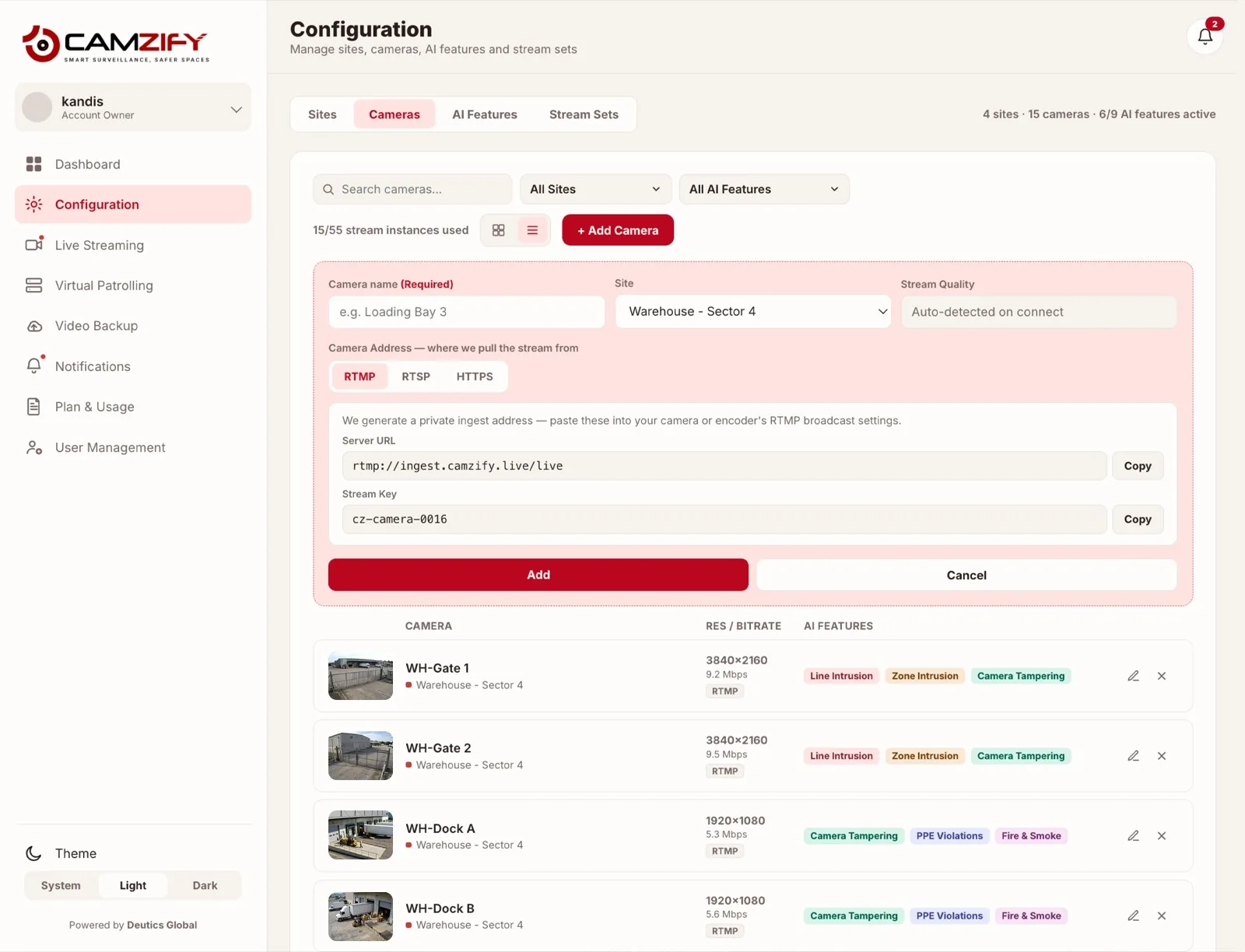
- 1
Locate your HLS stream URL
HLS streams use .m3u8 playlist files served over HTTP. Your camera, NVR, or media server should provide the HLS URL. Format: https://[server]/[path]/stream.m3u8 - 2
Add the camera in Camzify
In Camera Management → Add Camera → HTTPS, paste the .m3u8 URL. HLS and WebRTC are both added under the single HTTPS connection type. Camzify will connect to the stream and display the live preview. - 3
Verify stream quality
HLS streams may have higher latency (5-30 seconds) compared to RTSP or WebRTC. Verify that the stream quality is sufficient for AI detection. Minimum recommended resolution: 720p. - 4
Configure detection and patrols
Configure zones, lines, and other AI detections on the HLS feed. Add the camera to your virtual patrol sequences. Note: HLS latency is acceptable for patrol rounds but may not be suitable for real-time alerting use cases.
FAQ
Frequently asked questions
Under the HTTPS connection type, alongside WebRTC. If a camera or a service already publishes an HLS playlist on the web, that address is what you add.
HLS delivers video in segments, so it carries more latency than RTSP or WebRTC. For a scheduled patrol round that judges a frame at each stop it is fine; for watching a live event closely, WebRTC or RTSP is the better route.
No. HLS streams are reached over HTTPS from the internet, so no relay is involved. The Connector is for RTSP cameras on a local network.
Yes. Once connected it is a camera like any other: recording, detections, checklist items and rounds all apply.
Put these cameras on cloud recording
Camzify records RTSP, ONVIF, RTMP and HTTPS streams from the cameras you already own, with alerts and AI detections on top and nothing new on the wall.