

How to manage security camera alerts
 By Muhammad Talha · Product Manager and CTONine years building computer vision and automated surveillance systems · Updated
 An alert queue fails by being ignored, not by missing events. This guide covers working one at speed — scanning, filtering, judging against the surrounding video, acknowledging what matters — and tuning delivery so the right things interrupt people. See also how to reduce false alarms.
- 1
Scan the queue rather than reading it
Card view shows snapshots at a glance and list view is denser, with a colored edge carrying severity. Scanning images is far faster than reading rows, which matters because the practical failure of alerting is not missing an alert, it is a queue nobody opens because working through it takes too long.
- 2
Filter to the slice you are responsible for
Narrow by site, camera, feature, severity or date range. A supervisor covering three sites and a guard covering one should not be looking at the same queue, and filtering is what makes the same feed usable for both.
- 3
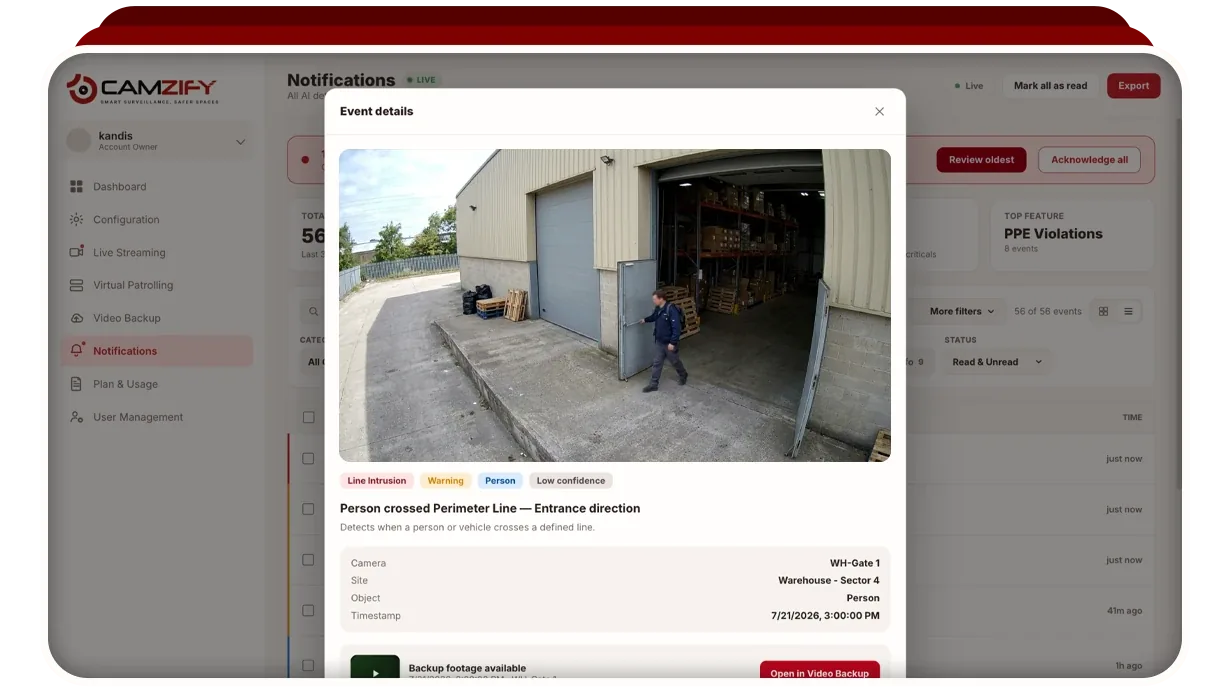
Open the event and look at the footage around it
The detail view carries the snapshot, which zooms, along with the metadata and, where backup was recording that camera, the linked video from around the event. That surrounding video is what separates a real judgment from a guess: a single frame shows a person near a door, and thirty seconds either side shows whether they opened it.
- 4
Acknowledge criticals and record what you did
Critical events carry a response band, with queue arrows to step through unacknowledged ones and a place to log your response. Acknowledgment is what converts an alert from something that fired into something a named person handled, which is the part an investigation asks about afterwards.
- 5
Tune the channels so the right things interrupt people
In notification preferences, toggle email, SMS, WhatsApp and push per alert category, and set notification severity per camera for each AI feature. A camera on a public pavement and a camera on a server room door should not carry the same severity for the same detection.
The order to fix things in is detection first, delivery second. Widening severity thresholds quietens a noisy queue for a week and hides real events at the same time; an exclusion zone over the tree line that was causing the noise fixes it permanently and costs you nothing.
Related: notifications and alerts, motion detection tuning, and configuring video backup.
Frequently asked questions
Ready to patrol your site 24/7?
Book a 15-minute demo and see a live patrol run on your own cameras.