

RTMP camera setup
Follow these steps to connect your camera to Camzify using RTMP.
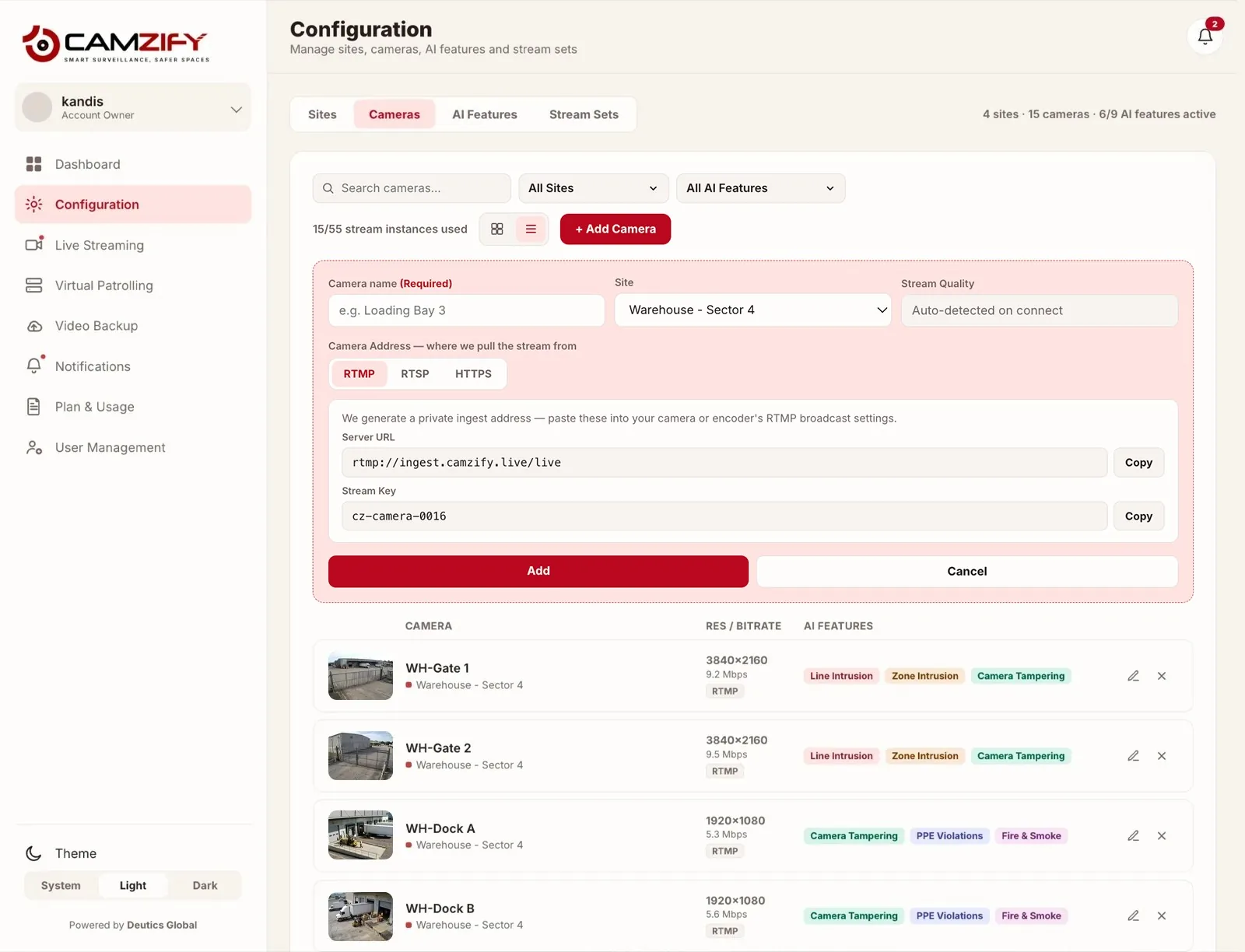
- 1
Get your Camzify RTMP server URL and stream key
In the Camzify dashboard, go to Camera Management → Add Camera → RTMP. The platform generates a unique server URL and stream key for this camera. - 2
Configure your encoder or camera
Enter the Camzify RTMP server URL and stream key into your encoder's streaming settings. This works with hardware encoders, OBS, and cameras with built-in RTMP push capability. - 3
Start the stream
Start the stream from your encoder. Camzify will detect the incoming feed and display the live preview in the dashboard. - 4
Configure detection and patrols
Once streaming, configure AI detections and add the camera to your virtual patrol sequences. RTMP streams support all the same AI capabilities as RTSP connections.
Cameras that push RTMP directly
Most IP cameras serve RTSP and need an encoder to push RTMP, which is why the RTSP route is simpler for an ordinary security camera. PTZ and live-streaming cameras built for platforms like YouTube Live and Twitch are the exception: native RTMP output is the point of the product, so they push straight to Camzify with no separate encoder.
- PTZOpticsPTZ cameras built for direct RTMP streaming
 PTZ cameras with built-in RTMP output
- VaddioPTZ cameras with native RTMP streaming
 PTZ conferencing cameras with RTMP on select models
- BirdDogNDI-first PTZ cameras with RTMP support
Brand names and logos are trademarks of their respective owners. Listing a manufacturer states that its cameras push RTMP directly to Camzify, with no separate encoder; it does not imply partnership, endorsement or certification by that manufacturer.
Frequently asked questions
Put these cameras on cloud recording
Camzify records RTSP, ONVIF, RTMP and HTTPS streams from the cameras you already own, with alerts and AI detections on top and nothing new on the wall.